Symbol Numbers & Admit Cards
Give each student an exam symbol number, then print admit cards.
A symbol number is the number a student writes on their exam paper. It is set per class and exam. Admit cards, the symbol-number print-outs and seat planning all use it. Do this after the class has been added to the exam, and before you print admit cards.
How to get here
Open Exams → Manage for the exam. On the class's row use the # icon (Symbol Numbers) or the card icon (Print Admit Card). See Exam Classes.
Assign symbol numbers
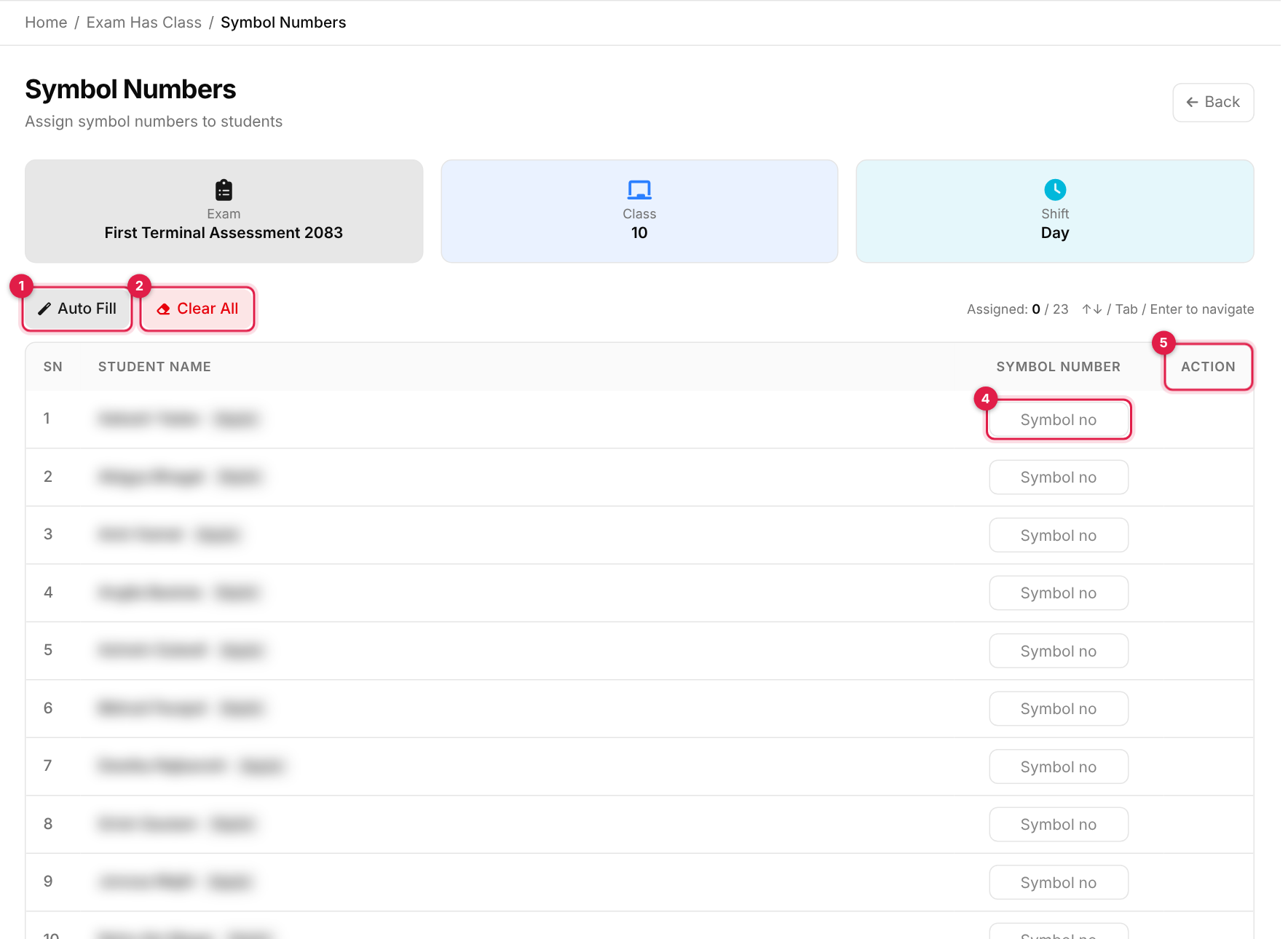
- 1Auto Fill: number every student in order from a starting number.
- 2Clear All: empties every box on the screen (nothing is deleted until you save).
- 3Save All Symbol Numbers: stores what is on the screen (button at the bottom of the list).
- 4Symbol Number box: type a number for the student.
- 5Action: a bin appears here once a student has a saved number.
The top cards show the exam, class and shift. The list contains the class's current-batch students in that shift who are not marked as left, each with a Regular or Irregular tag. Assigned: X / N counts how many have a number.
-
1
Choose how to number
Either type numbers into the boxes, or click Auto Fill and enter the Starting Symbol Number, then Fill.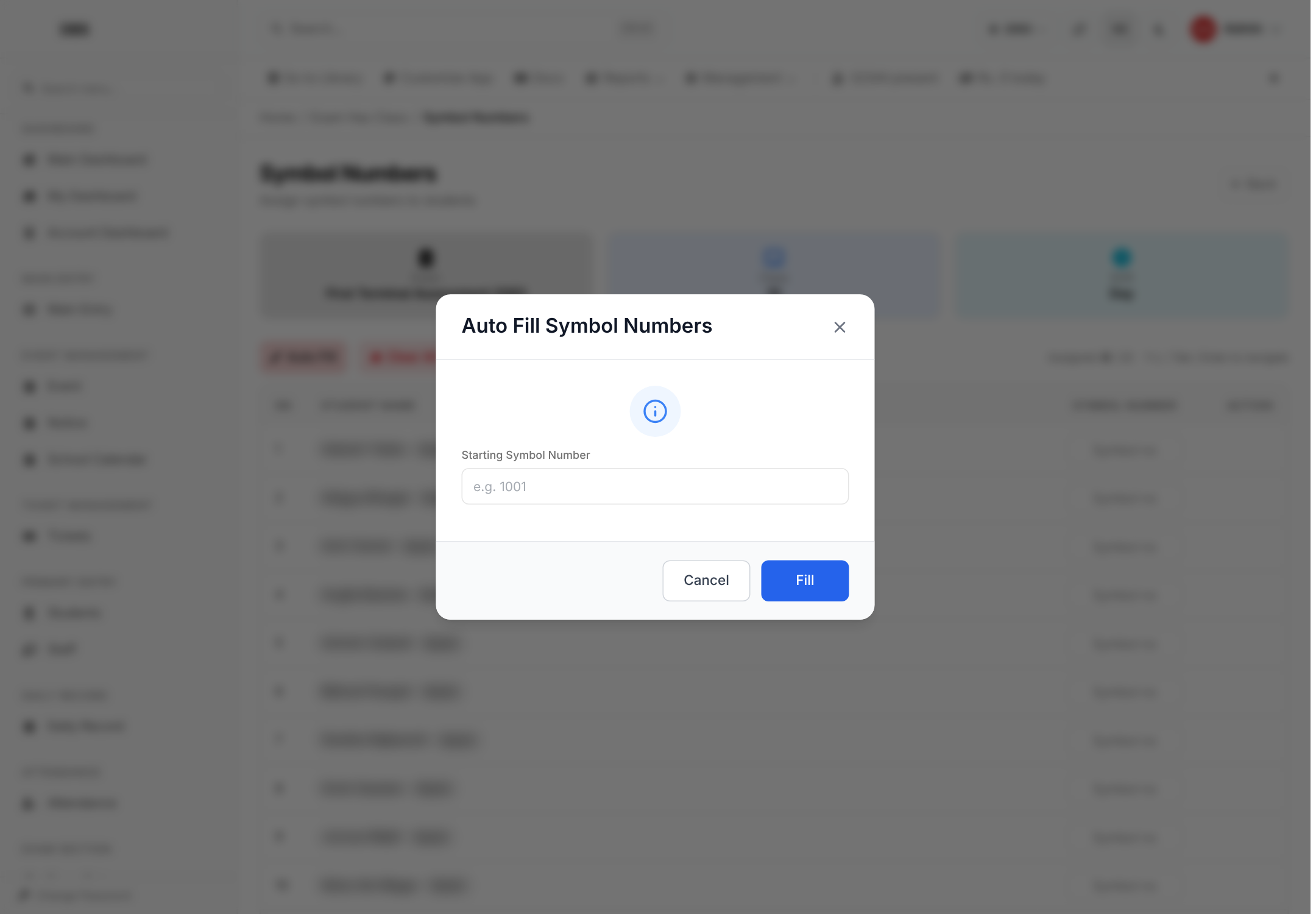
The Auto Fill box -
2
Check the numbers
Auto Fill numbers every row in the order shown and overwrites numbers already typed. Arrow Up and Down, Tab and Enter move between rows. -
3
Save
Click Save All Symbol Numbers. You see Data added successfully!.
Careful with these
- Symbol numbers are not checked for duplicates. Two students can be given the same number.
- Saving a blank box for a student who already has a number replaces it with a blank. Use the bin to remove a number on purpose.
- Use Save All to save. Saving a single row with Enter or Tab is not reliable.
Print admit cards
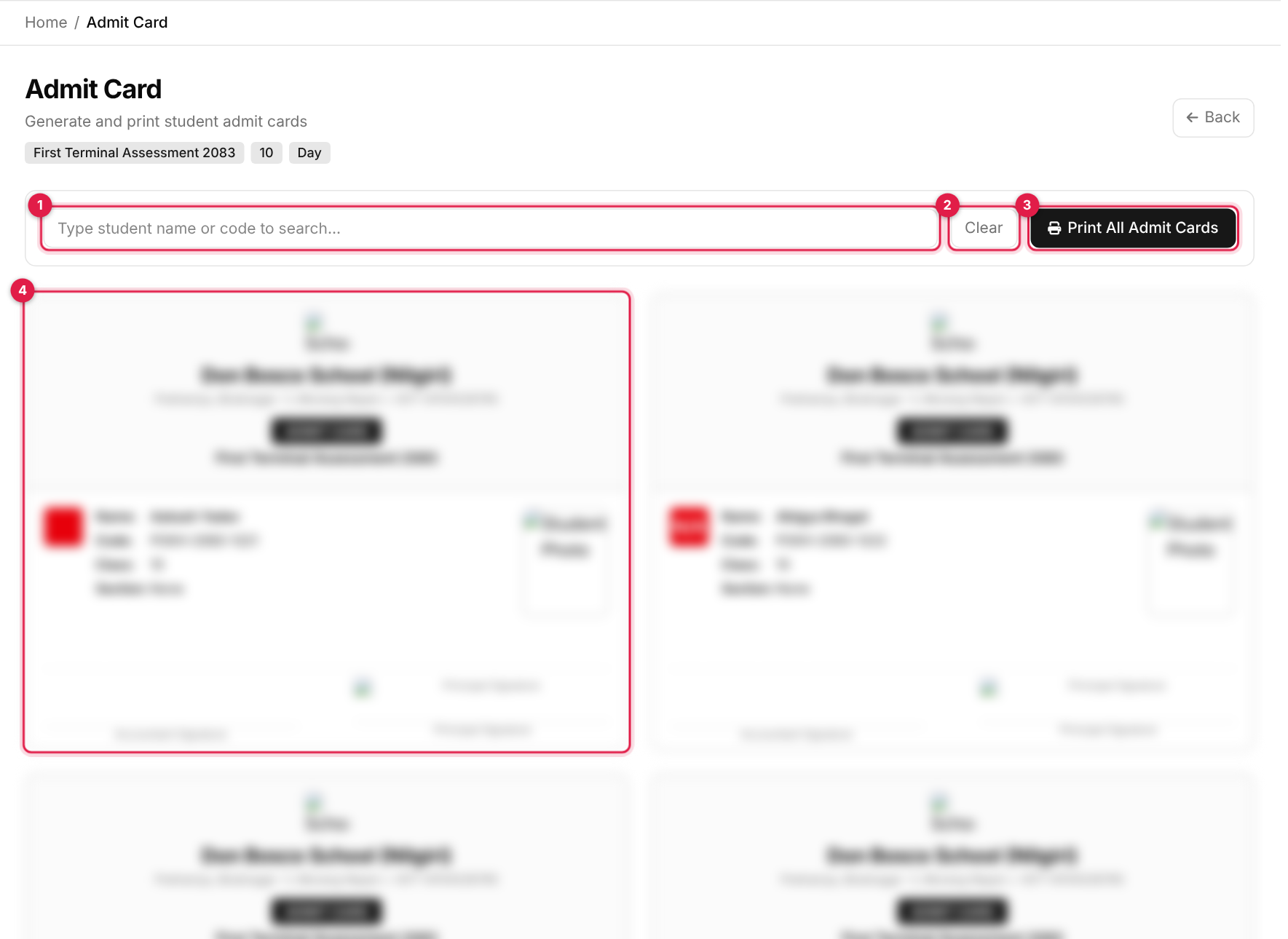
- 1Search: type a student name, code or symbol number. It filters the cards on the page (nothing is sent to the server).
- 2Clear the search.
- 3Print All Admit Cards: opens the print dialog for every card shown.
- 4An admit card: school name and logo, ADMIT CARD, exam name, the symbol number in a red box, name, code, class, section, photo and signature lines.
Admit cards open in a new tab. Keyboard shortcuts: Ctrl+F focuses the search box, Esc clears it and Ctrl+P prints.
No symbol number, no number on the card
A student without a symbol number still gets a card, with N/A in the red box. Assign symbol numbers first.
Print symbol numbers
- Whole exam: in Exams, click the printer icon on the exam row. A grid shows each symbol number with the student name. Use Print Me.
- One class: use the Symbol No Print icon on the class's row in Exam Classes.
Messages you may see
| Message | What it means |
|---|---|
| Data added successfully! | The symbol numbers were saved. |
| Delete symbol? / Delete this symbol number? | Confirmation before removing a saved number with the bin. |
| Clear all? / Clear all symbol numbers? | Confirmation before emptying every box on the screen. |