Exam Students
Decide how many students of each class sit in each room, and plan seats.
For one exam, this page allocates a number of students per class to a room and shift. It checks the number against the room's capacity. The allocations are the base data for the seat plan.
Before you start
The list page
Open Exam Section → Exam Students.
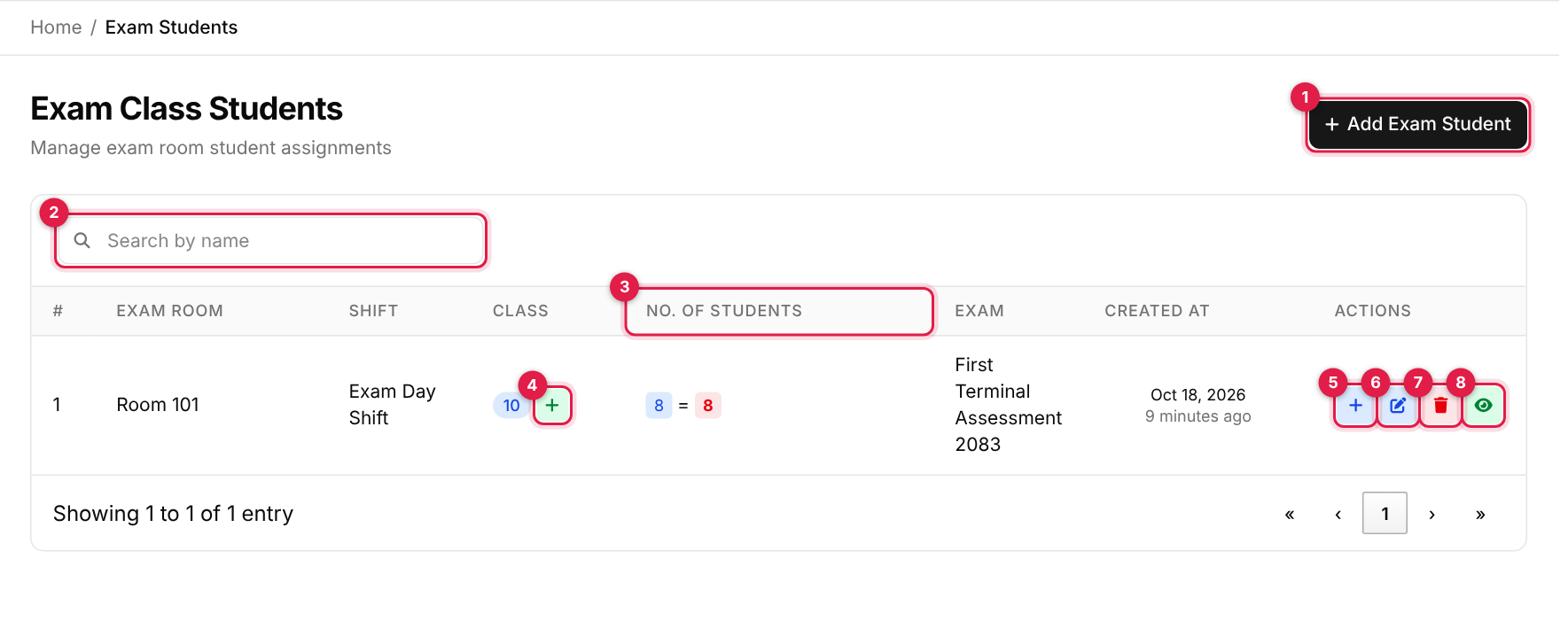
- 1Add Exam Student: a new allocation (a full page).
- 2Search box. It may not narrow the list.
- 3No. of Students: a badge per class, then = total for the room.
- 4The class pill with a green + opens seat planning for just that class.
- 5Seat Planning (plus icon): open the seat plan for the whole allocation.
- 6Edit (pencil).
- 7Delete (red bin).
- 8View Seat Plan (eye): the printable seat plan.
Columns: #, Exam Room, Shift, Class, No. of Students, Exam, Created At, Actions. Ten rows per page; there is no filter by exam, room or shift.
Allocate students to a room
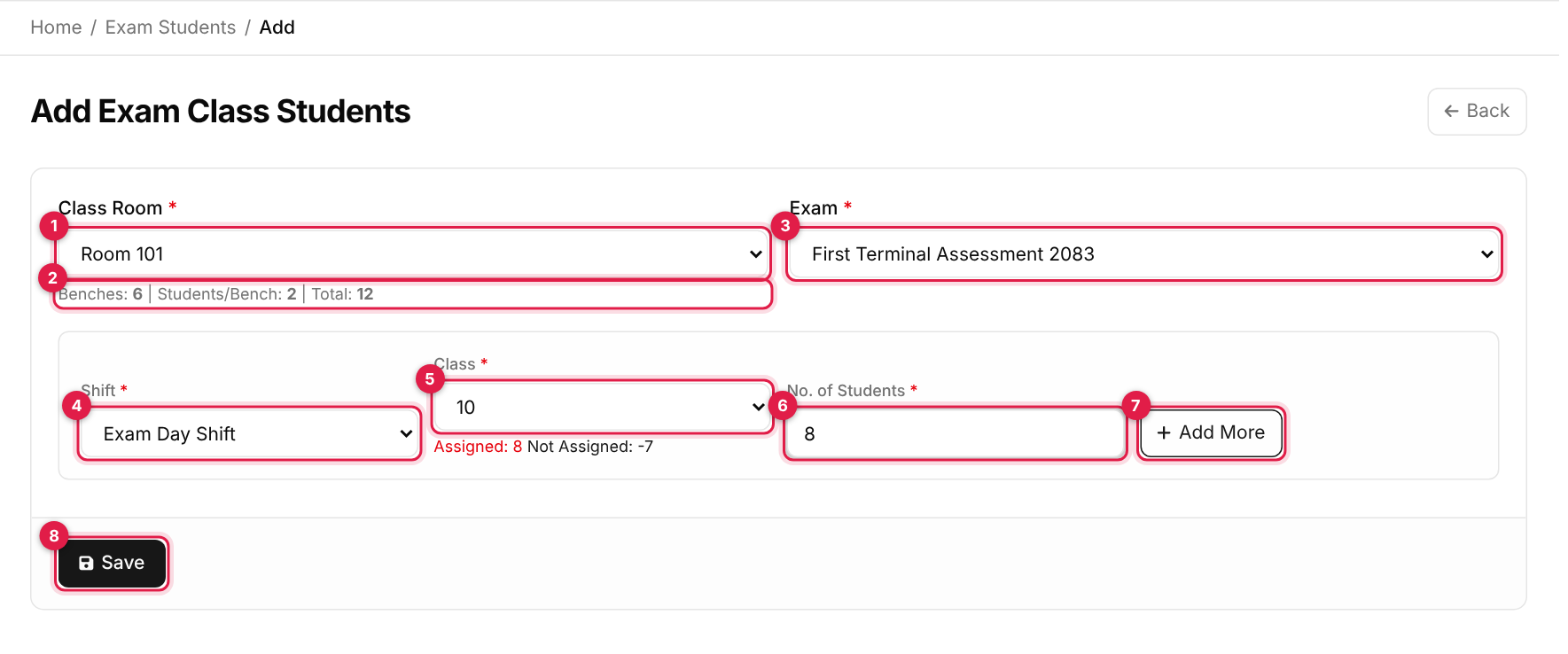
- 1Class Room (required): only rooms that have a capacity are listed.
- 2Capacity line: Benches | Students/Bench | Total, shown after you pick a room.
- 3Exam (required): choosing it fills the class lists with that exam's active classes.
- 4Shift (required): the room's assigned shifts. Pick the room first.
- 5Class (required). Below it: Assigned (already placed in rooms) and Not Assigned (students with symbol numbers not yet placed).
- 6No. of Students (required): how many of this class sit in this room and shift.
- 7Add More: add another class row (up to 14 more).
- 8Save.
-
1
Pick the room, then the exam
The order matters: the shift list needs the room, and the class lists need the exam. -
2
Choose shift, class and number
Enter how many students of that class sit here. The total for the shift must not go over the room's seats. -
3
Save
Click Save. You see Data added successfully!.
Rules and quirks
- Over the capacity gives Number of allocated students exceed capacity of class.
- There can be one allocation per room + exam + shift. A second one gives This Class is already assigned.. To add another class to it, use Edit.
- Not Assigned counts students across all rooms for that exam, and it goes negative (red) if you allocate more than there are symbol numbers.
- Rows added with Add More may show an empty Shift list. If so, save this row and add the others as separate allocations.
Edit and delete
On the edit page the room and the existing shift and class cannot be changed; you can change the numbers, add a class with the + button, or remove a class with its bin. If you open a new empty row, either fill it or remove it before clicking Update, otherwise the save is refused as incomplete. Removing a class is refused (Something went wrong!) while it has seat-plan entries, so clear its seats first. Deleting a whole allocation from the list does not check seat plans.
Seat planning
Use the plus icon (callout 5), or the green + beside a class (callout 4).
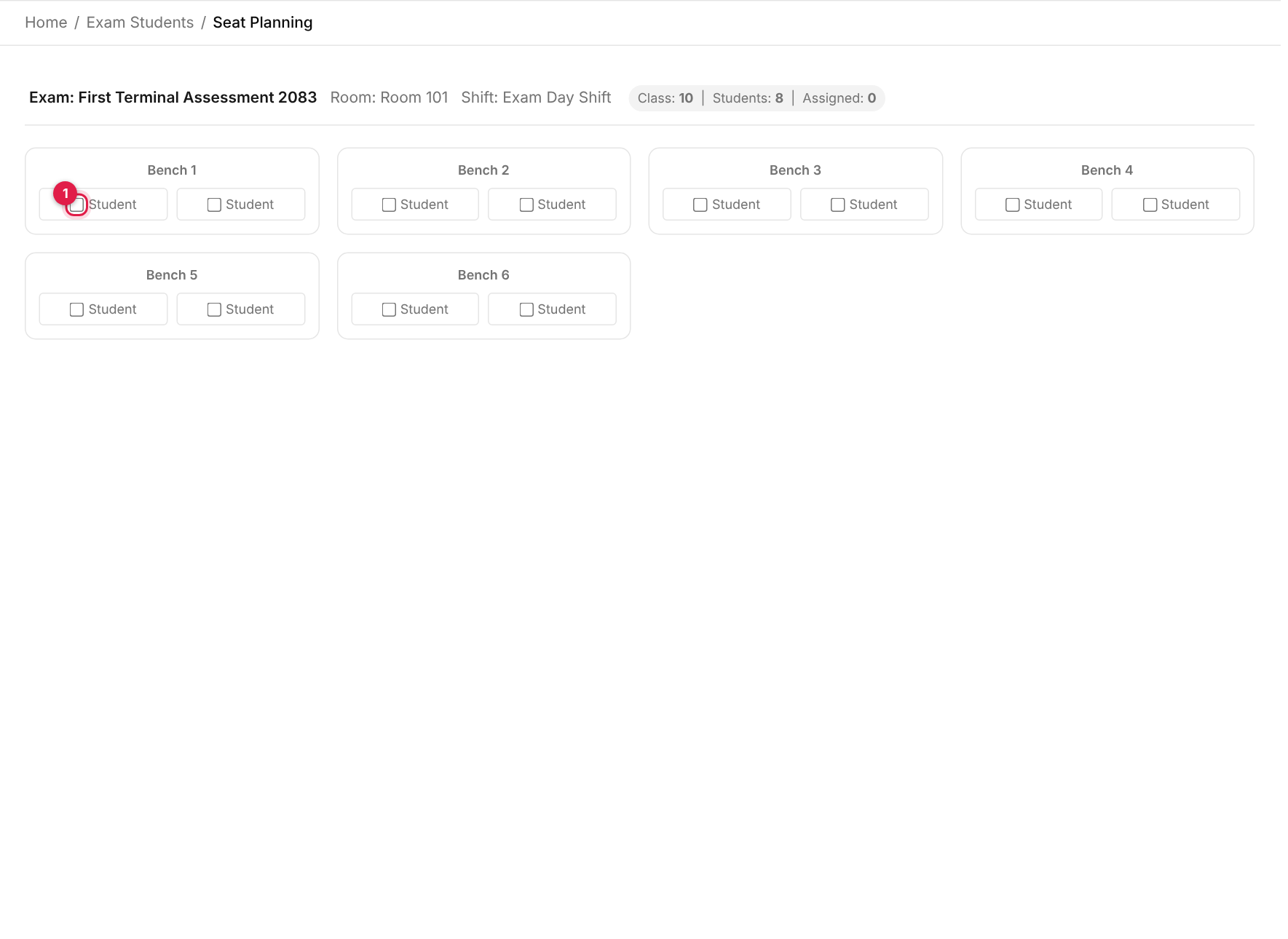
- 1An empty seat. From a class pill it shows a Student checkbox; from the row's plus icon it shows a class drop-down instead.
The header shows the exam, room and shift, and a pill per class: Class | Students | Assigned. The grid has one card per bench, with one seat per student on that bench. A filled seat shows the symbol number with edit and delete icons. The View Seat Plan eye icon on the list opens a printable plan with the school header, the room, shift and classes and the bench layout.
Known issue: seats cannot be saved from this page right now
Messages you may see
| Message | What it means |
|---|---|
| Data added successfully! | The allocation was saved. |
| Data updated successfully! | Your changes were saved. |
| Number of allocated students exceed capacity of class. | Reduce the numbers or choose a bigger room. |
| This Class is already assigned. | That room, exam and shift already has an allocation. Edit it instead. |
| Something went wrong! | A class cannot be removed while it has seat-plan entries. |
| No records found. | Nothing has been allocated yet. |