Grades
The grade scale that turns percentages into letter grades and grade points.
A grade is a band of percentages with a name and grade points, for example A+ : 90% to 100% : 4.0. When a mark is saved, the system works out the percentage (obtained × 100 ÷ full mark) and finds the active grade whose band contains it. That gives the grade and grade point shown on report cards and ledgers. The subject GPA is the credit hours multiplied by the grade point.
Grades belong to the school, not to a batch or class. Set them up before any marks are entered.
The list page
Open Exam Section → Grades.
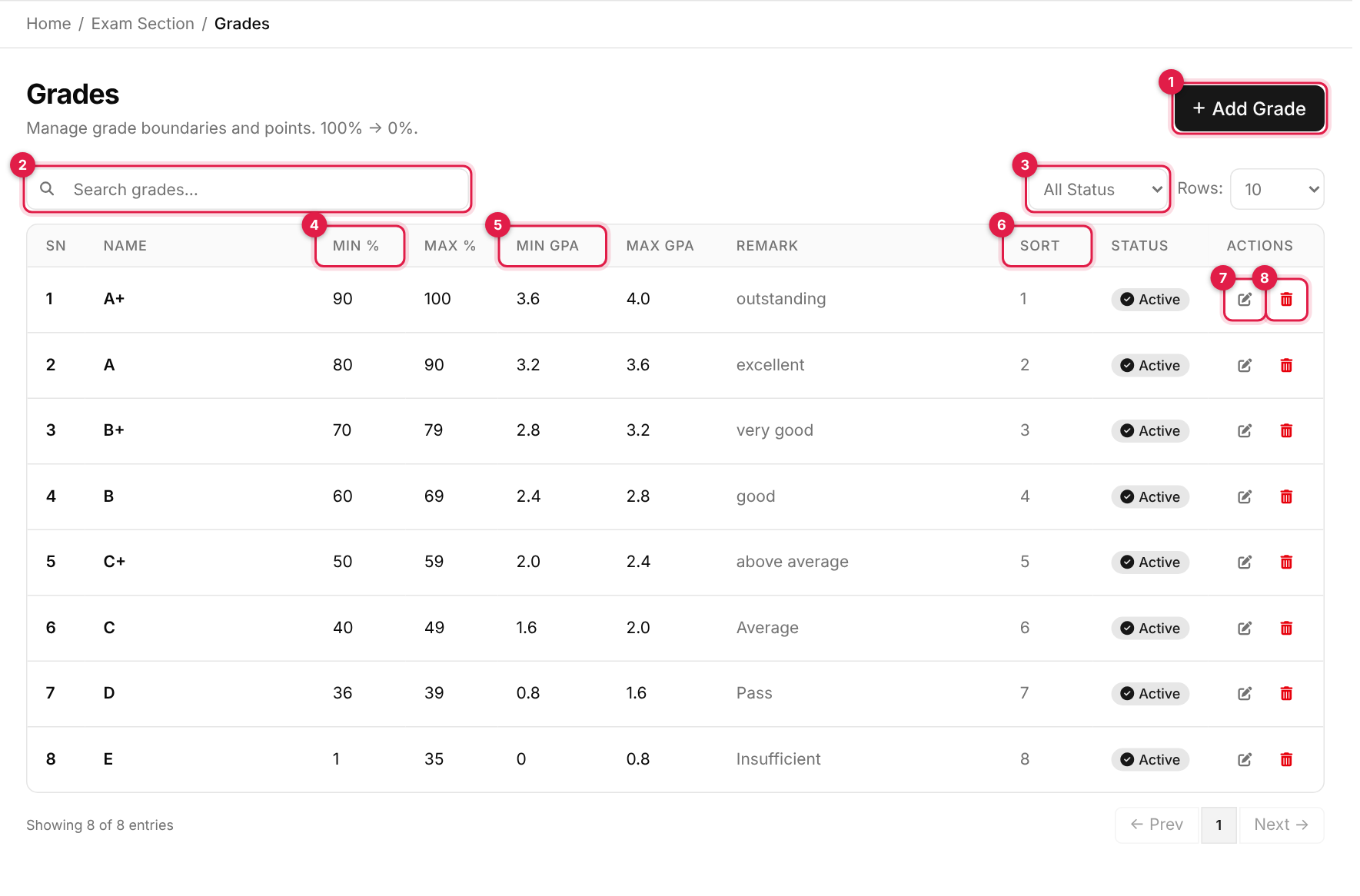
- 1Add Grade opens the form in a panel on the right.
- 2Search grades by name.
- 3Status filter: All, Active or Inactive.
- 4Min % / Max %: the percentage band.
- 5Min GPA / Max GPA: the grade points. The Max GPA is the one used.
- 6Sort: the order grades are listed in (lowest number first).
- 7Edit (pencil).
- 8Delete (red bin).
Add a grade
-
1
Open the panel
Click Add Grade (callout 1). -
2
Fill in the details
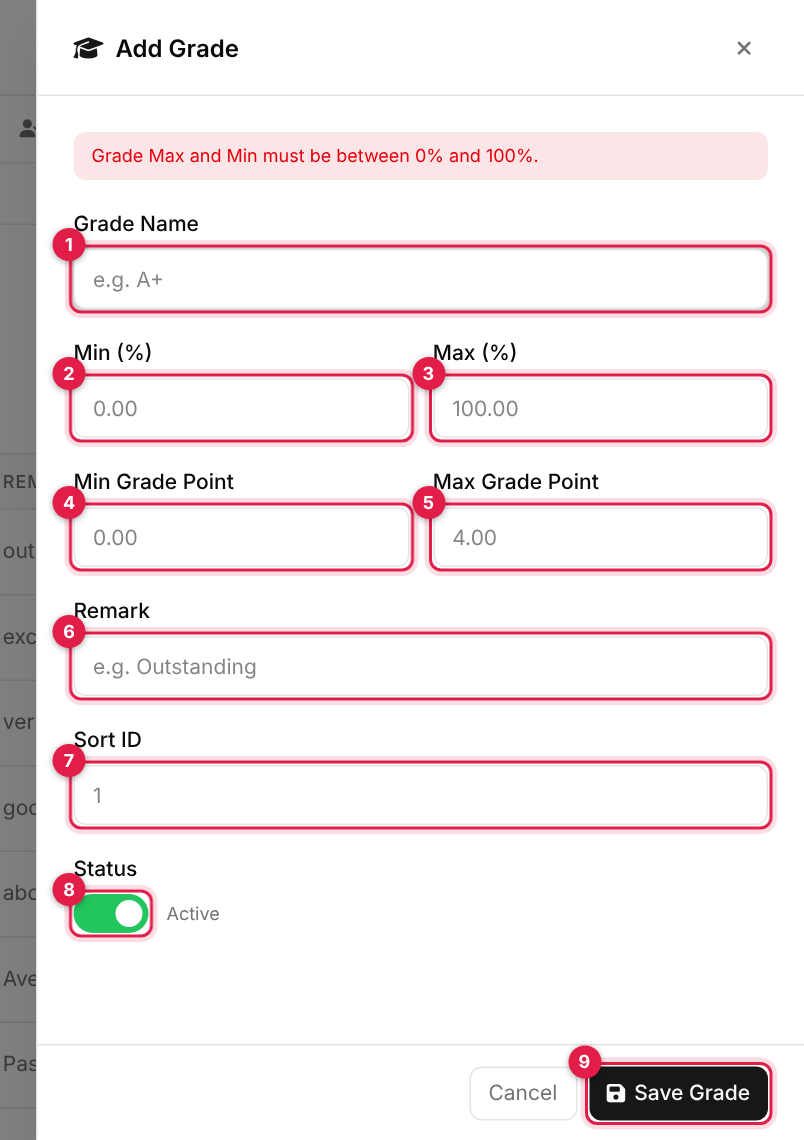
The Add Grade panel # Field Required What to enter 1 Grade Name Yes For example A+. The first letter of each word is capitalised automatically. Must be unique.2 Min (%) Yes Lowest percentage in the band, 0 to 100. 3 Max (%) Yes Highest percentage, 0 to 100, and greater than Min. 4 Min Grade Point Yes Lowest grade point for the band. 5 Max Grade Point Yes The grade point the system uses for this grade. Not less than Min Grade Point. 6 Remark No A word shown with the grade, for example Outstanding.7 Sort ID No A whole number that sets the list order. 8 Status No On (default) = the grade is used. Only active grades are matched. Callout 9 is Save Grade.
-
3
Save
Click Save Grade. You see <name> created successfully! and the list refreshes.
How a percentage finds its grade
- Only active grades are considered.
- A percentage belongs to a band when Min ≤ percentage < Max. Exactly 100% counts as inside the band that ends at 100.
- So a student on exactly 90% falls into the band that starts at 90, not the one that ends at 90.
- If no band matches, the grade and grade point are left blank, with no error.
Keep the bands joined up
The system does not check for gaps or overlaps. A gap leaves some percentages without a grade, and where bands overlap the first match wins. Make each band start where the one below it ends (for example 0-40, 40-50, 50-60, up to 90-100).
Edit and delete
-
1
Edit
Click the pencil (callout 7), change the fields in the panel and click Update Grade (<name> updated successfully!). Renaming does not change the grade's internal reference. -
2
Delete
Click the red bin (callout 8) and confirm Are you sure?.
Changing grades after marks exist
Grades are worked out when marks are saved. Editing or deleting a grade later does not recalculate marks that were already saved, and the system does not stop you deleting a grade that is in use. Mark a grade Inactive rather than deleting it, and plan changes before the exam.
If a save does nothing
The panel shows a plain error if a save is refused. Check that Max is greater than Min, that every number is between 0 and 100, and that the grade name has not been used before.
Messages you may see
| Message | What it means |
|---|---|
| <name> created successfully! | The grade was added. |
| <name> updated successfully! | Your changes were saved. |
| Record deleted successfully. | The grade was removed. |
| The slug has already been taken. | A grade with that name already exists. |