Exam Rooms
Set up the rooms used for exams, their bench layout and their shifts.
An exam room is a physical room with a capacity (benches and students per bench) and the shifts it is used in. Rooms are the first step of exam seating: once a room has a capacity and a shift it can be chosen in Exam Students.
Before you start
The list page
Open Exam Section → Exam Rooms.
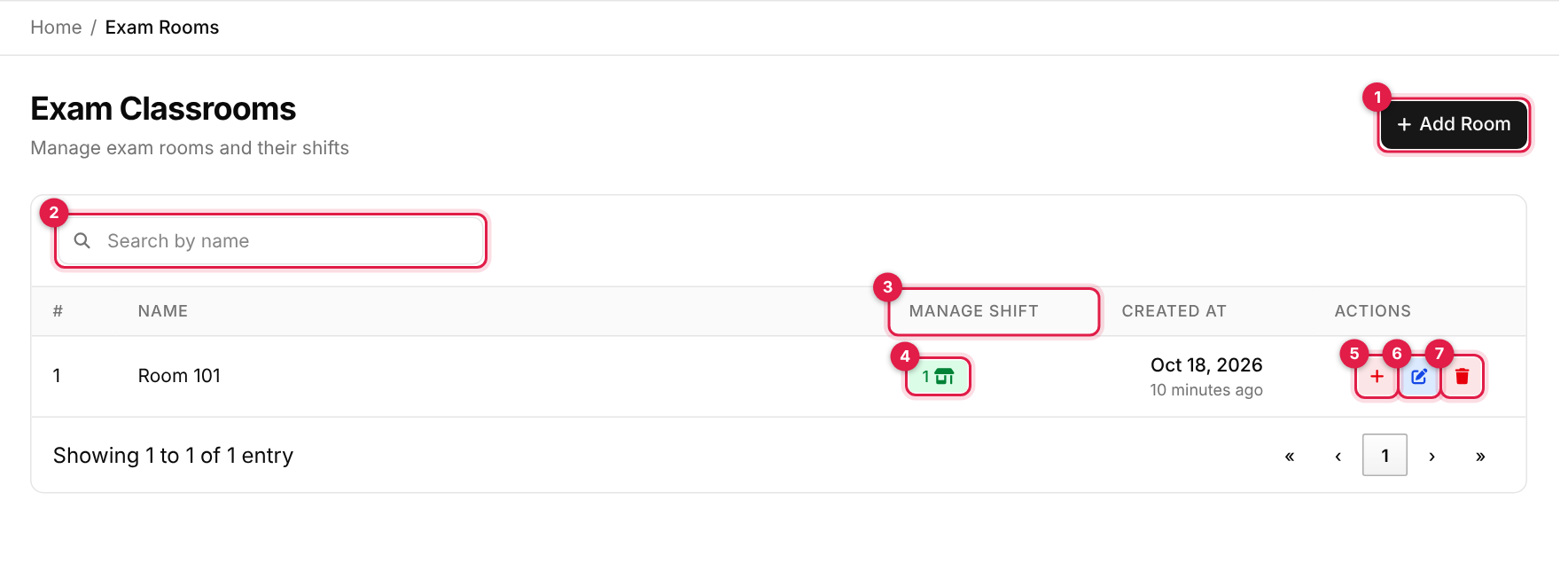
- 1Add Room opens the add form (a full page).
- 2Search by room name as you type.
- 3Manage Shift: how many shifts the room has.
- 4The shift badge opens the room's shift page.
- 5Add Capacity (plus icon): set benches and seats. It stays red even after a capacity is saved, so do not rely on its colour.
- 6Edit (pencil): rename the room.
- 7Delete (red bin).
The list shows 10 rooms per page, with no page-size choice. The columns are #, Name, Manage Shift, Created At and Actions.
Set up a room
-
1
Add the room
Click Add Room, type the name and click Save.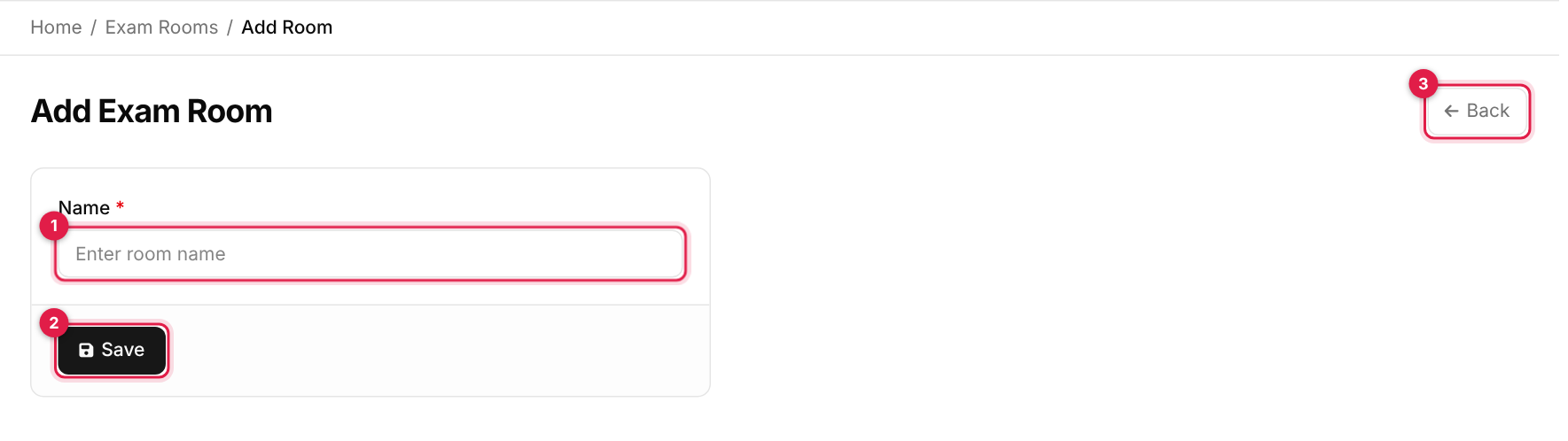
Add Exam Room - 1Name (required), for example Room 101.
- 2Save.
- 3Back without saving.
You see Data added successfully!. Adding a name that already exists does not create a duplicate; it updates the existing room.
-
2
Set the capacity
Click Add Capacity (callout 5) on the room's row.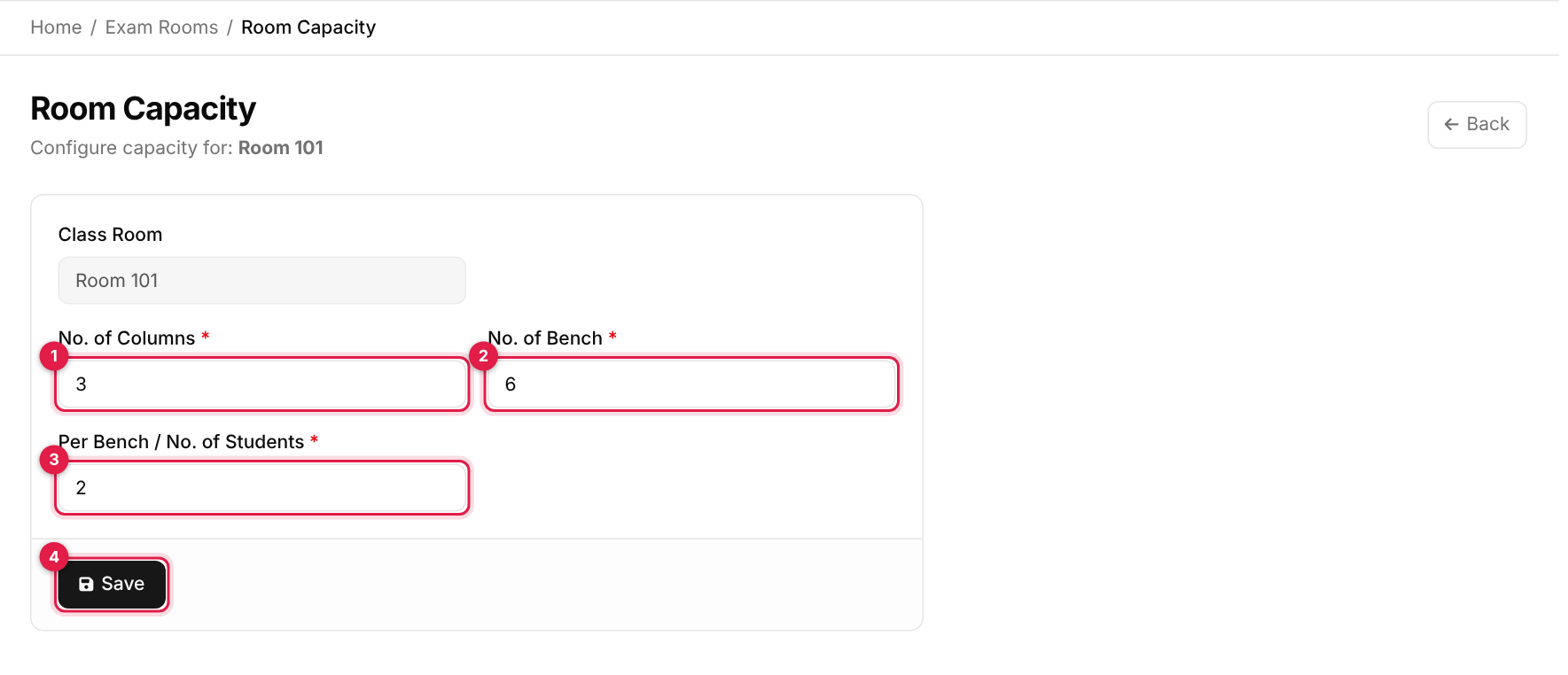
Room Capacity # Field Required What to enter 1 No. of Columns Yes Number of columns of benches, for example 3. This is stored, but the seat plan and capacity checks use only benches and seats per bench.2 No. of Bench Yes Total number of benches, for example 6.3 Per Bench / No. of Students Yes How many students sit at each bench, for example 2.Click Save (callout 4). The room's seat total is benches × students per bench (here 6 × 2 = 12). A room has one capacity; saving again changes it.
-
3
Assign shifts
Click the shift badge (callout 4).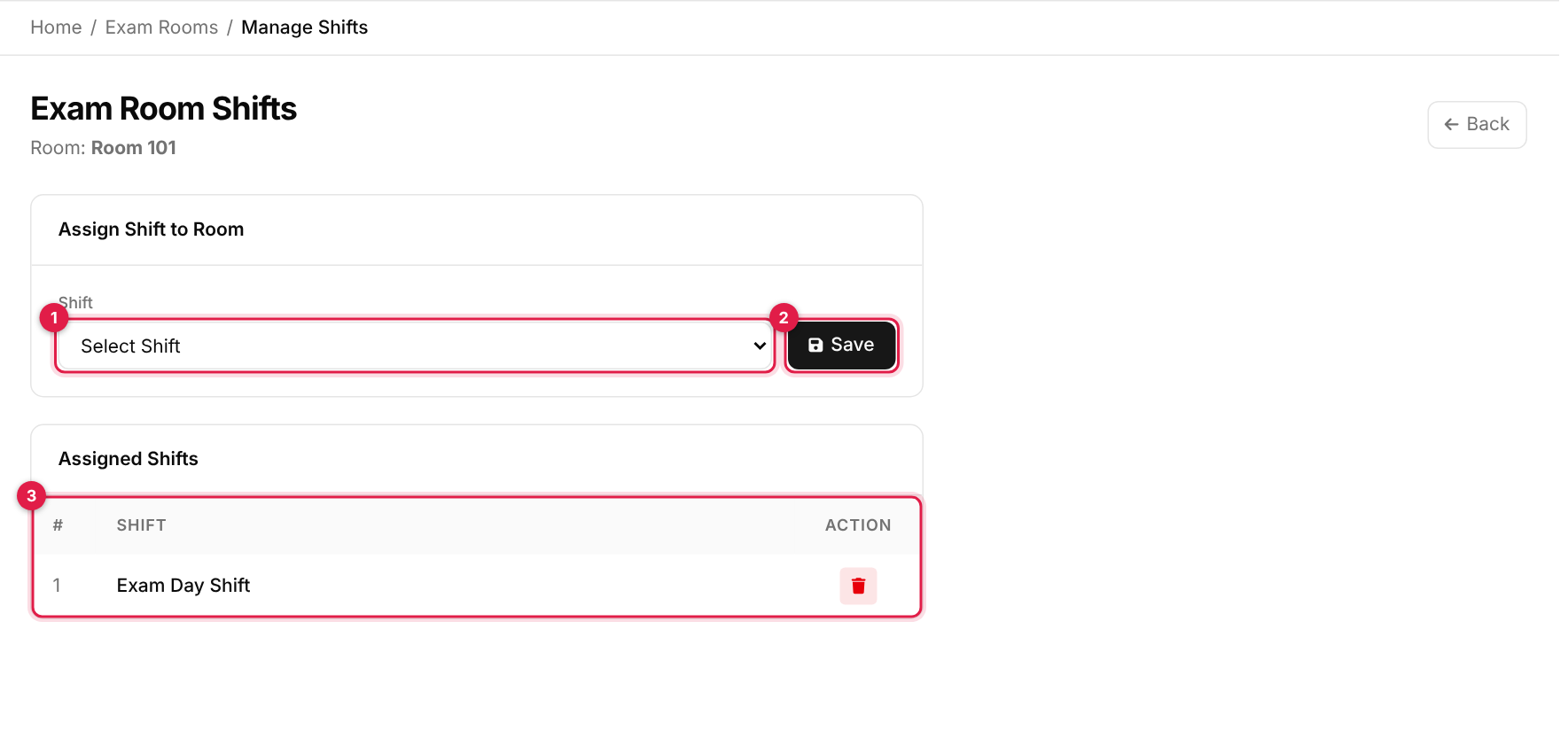
Exam Room Shifts - 1Shift: only exam-type shifts are listed.
- 2Save assigns the shift to the room.
- 3Assigned Shifts: the room's shifts, each with a bin to unassign it.
Choose a shift and click Save. Do not save the placeholder Select Shift. A shift can be assigned to a room only once.
Edit and delete
Known issue: renaming a room
The red bin deletes the room after Are you sure?. The system does not check whether the room is already used in Exam Students or seat plans, so remove those first. There is no Active/Inactive switch for rooms.
Messages you may see
| Message | What it means |
|---|---|
| Data added successfully! | The room, capacity or shift was saved. |
| <name> updated successfully! | The room was renamed. |
| Room name already exist for this School. | Another room (or this one, unchanged) already has that name. |
| No rooms found. / No shifts assigned yet. | Nothing has been added yet. |
| Record deleted successfully. | The room or shift link was removed. |