Main Entry
Master data every other part of the system depends on. Set it up once, in the right order, and keep it tidy.
Main Entry is where you maintain the lists the rest of the system picks from: batches, classes, shifts, subjects, castes, packages and so on. Nothing here is a transaction; it is the vocabulary other screens use. Get it right once and student admission, attendance, exams and fees become much quicker.
The Main Entry dashboard
Open Main Entry in the left sidebar. Every module is a card, grouped by purpose.
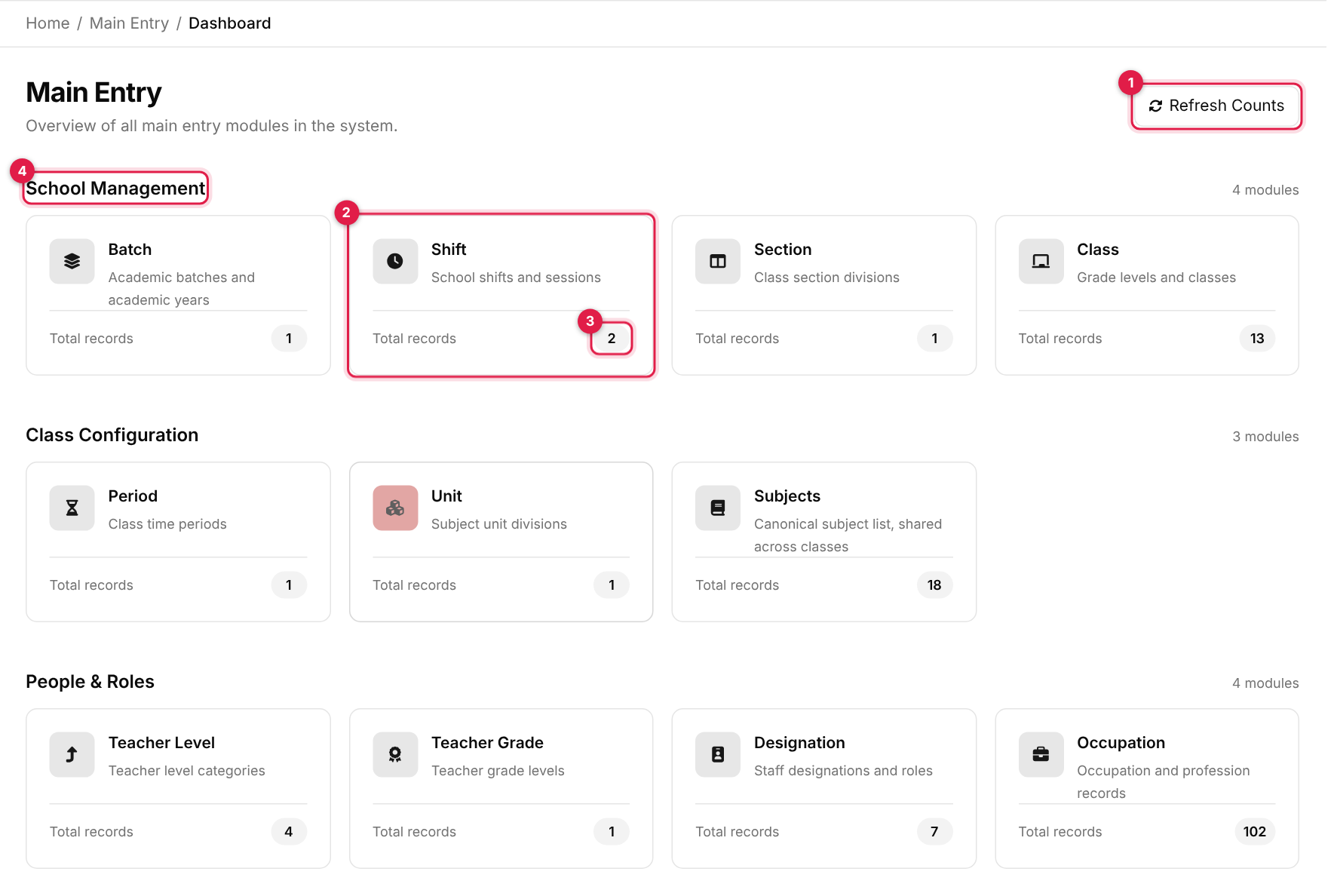
- 1Refresh Counts re-reads the record counts on every card.
- 2A module card. Click it to open that module's list.
- 3Total records: how many records the module holds.
- 4Group heading: modules are grouped as School Management, Class Configuration, People & Roles, Demographics and Finance & Policies.
You may not see every card
Cards are shown according to your role. If a module you expect is missing, ask an administrator to grant its management dashboard permission. If you see You don't have permission, your role has no Main Entry modules.
How every module works
Almost all modules look and behave the same, so once you know one you know them all:
- A list with a Rows selector (10, 20, 50 or 100) and page buttons under the table.
- An Add button at the top right opens a form in a panel on the right. The same panel is used for editing.
- A Status switch (Active/Inactive) on every form. Inactive records stay in the list but stop appearing in dropdowns elsewhere.
- A pencil to edit and a red bin to delete (after a confirmation). Deleting is permanent.
- A green Success message after saving, or a red Error message listing what to fix.
- The Add, Edit and Delete buttons only appear if your role has permission for them.
Names must be unique
For most modules the name is compared ignoring capitals, spaces and punctuation. Grade 1, grade 1 and Grade-1 are the same name, and the second one is rejected with The slug has already been taken. A name written only in non-Latin script (for example Devanagari) can clash with other such names, so include a Latin part where you can.
Recommended setup order
Some modules depend on others. For a new school, work down this list:
- Settings first: check the Running Class school setting, because Class checks the class number against it.
- Batch: the current academic year.
- Shift: regular shifts (add exam shifts only when you run exams).
- Section.
- Class, then on each class: Manage Shift first, then Manage Section.
- Subjects, then assign subjects to each class from the class name.
- Period: needed before building routines.
- People: Teacher Level, Teacher Grade and Designation before adding teachers; Occupation before admitting students.
- Demographics, before student admission: Nationality, Religion, Cast, Tole.
- Finance: Package and Fee Type.
- Unit can wait until you need it.
Guides
School Management
BatchAcademic batches and academic years
ShiftSchool shifts and sessions
SectionClass section divisions
ClassGrade levels and classes
Class Configuration
PeriodClass time periods
UnitSubject unit divisions
SubjectsCanonical subject list, shared across classes
People & Roles
Teacher LevelTeacher level categories
Teacher GradeTeacher grade levels
DesignationStaff designations and roles
OccupationOccupation and profession records
Demographics
NationalityNationality and origin records
CastCast and category records
ReligionReligion and faith records
ToleAddress and tole records