A read-only month view of everything happening at school.
The Calendar brings together events and holidays, exams, exam-result dates and bill collections for the current school year, so you can see a whole month at a glance. You cannot add or change anything here; to add an event use Event.
The month view
Open Event Management → Calendar.
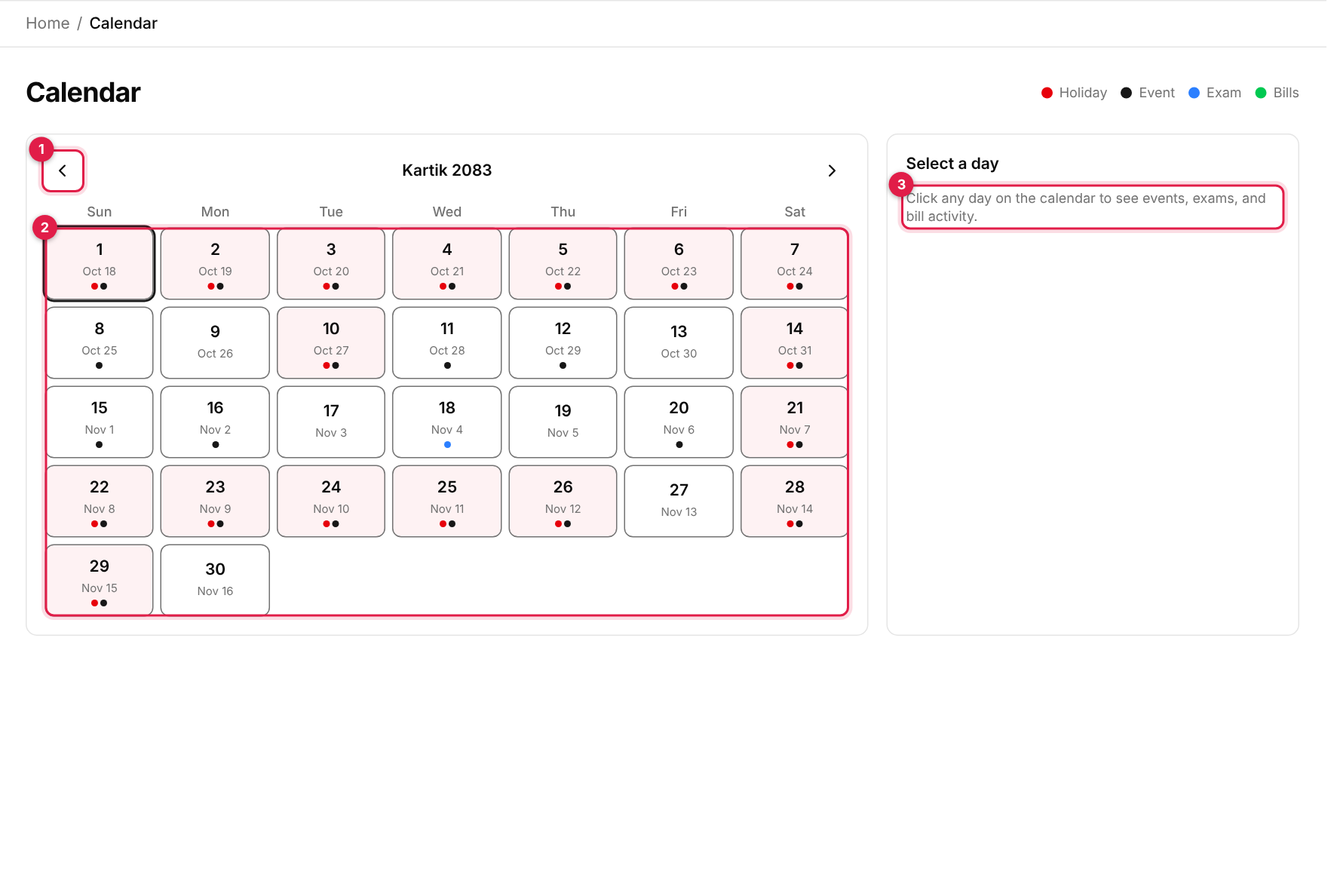
Calendar, Kartik 2083
1Previous / next month arrows. The title between them shows the Nepali month and year.
2The month grid. Each day shows the Nepali date in large type and the English date (for example Oct 18) below it. Today has a dark outline.
3Day panel: click any day to see its details here.
Coloured dots under a day tell you what is on it:
Red: Holiday
The day is a holiday. The whole day is also tinted red.
Black: Event
An event or notice falls on that day.
Blue: Exam
An exam runs on that day, or its results are published.
Green: Bills
Fee bills were collected that day.
See what is on a day
1
Click a day
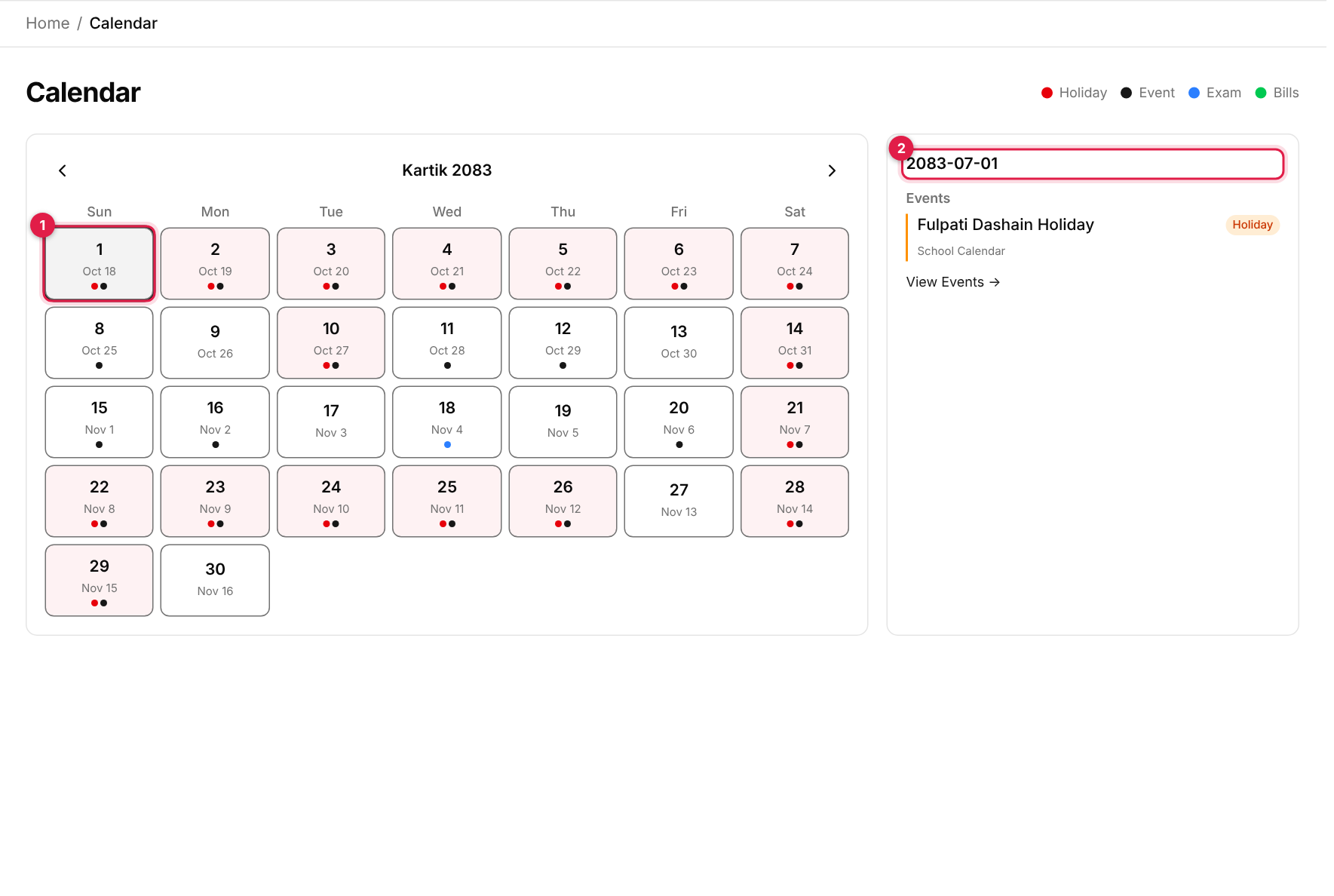
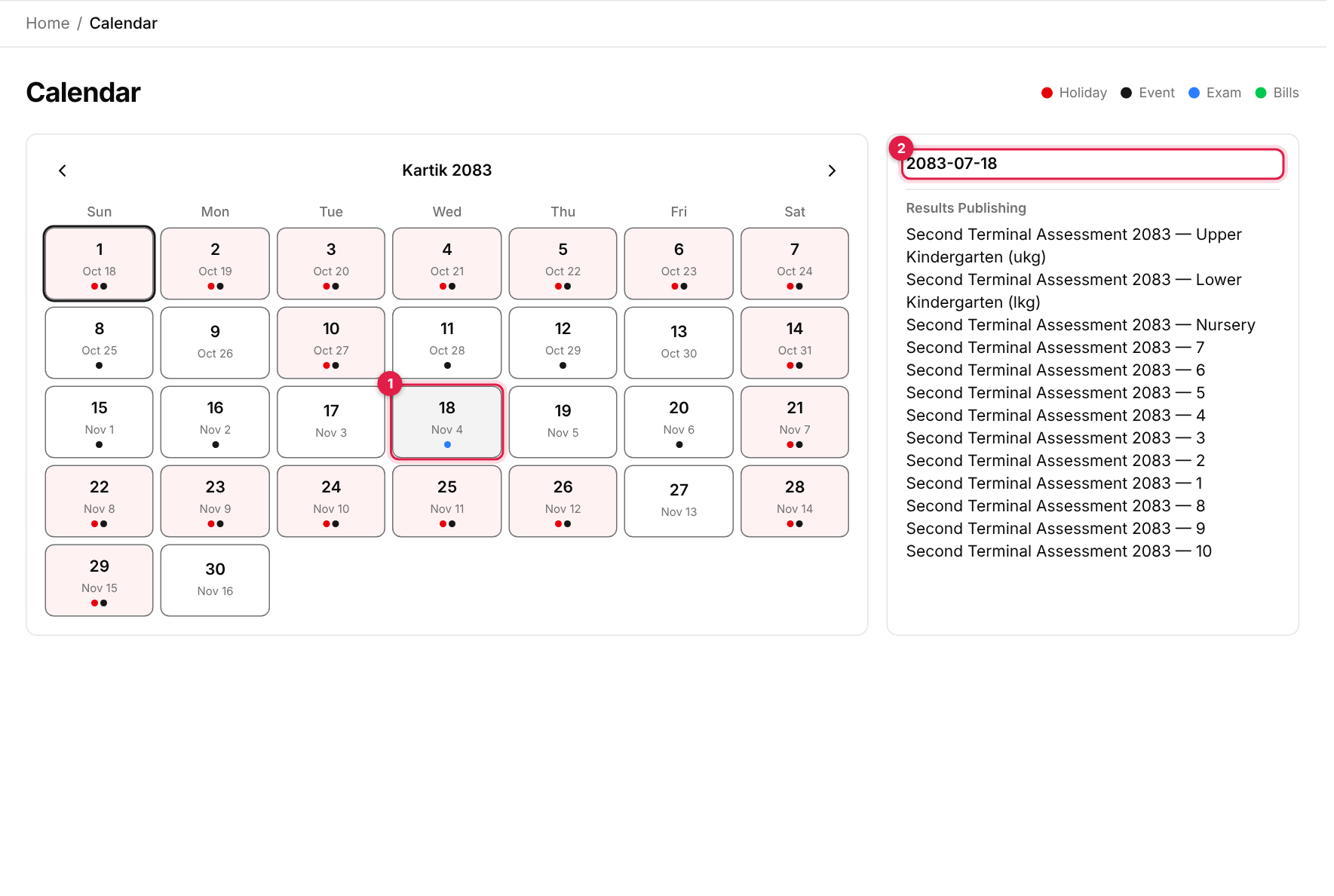
Click any day on the grid (callout 1 below). It is highlighted and the panel on the right fills in.
2
Read the panel
The panel title is the Nepali date (callout 2). A day with an event shows a card with the event title, its activity badge and its type.
A holiday selected: the panel lists the event
A day with an exam result shows Results Publishing with the exam and class names.
An exam-results day
Other sections that can appear are Exams and Bills Collected (the number of bills and the amount). A day with nothing shows Nothing on this day.
3
Jump to the detail
Event titles link to the event's detail page, and View Events and View Bill Report links take you further.
Which events show up
The calendar lists events of every type, not only School Calendar entries. It shows the events, exams and bills of the school and the current batch (academic year).
Multi-day events
An event that runs over several days is listed in the day panel on every day it covers, so click any of those days to find it.
Demonstration
This is a demo site. GurasEMS is not live yet.
We are still building GurasEMS. This site is a preview of how it is intended to look and behave. It is not the finished product, and there is no working system behind it to sign in to.
Every screenshot, school name, person, figure and testimonial here is sample content. Some of the numbers are placeholders and should not be read as real results.
Please do not enter real information. No form on this site stores, sends or shares anything you type into it.