Activities
Short labels that school-calendar entries can carry.
An activity is a one-word label such as Holiday, Class or Working Day. When an event type has the Activity field switched on, the event form offers these labels in a dropdown. The label then shows next to the event on the calendar and decides whether the day is treated as a holiday or as closed.
The list page
Open Event Management → Activities.
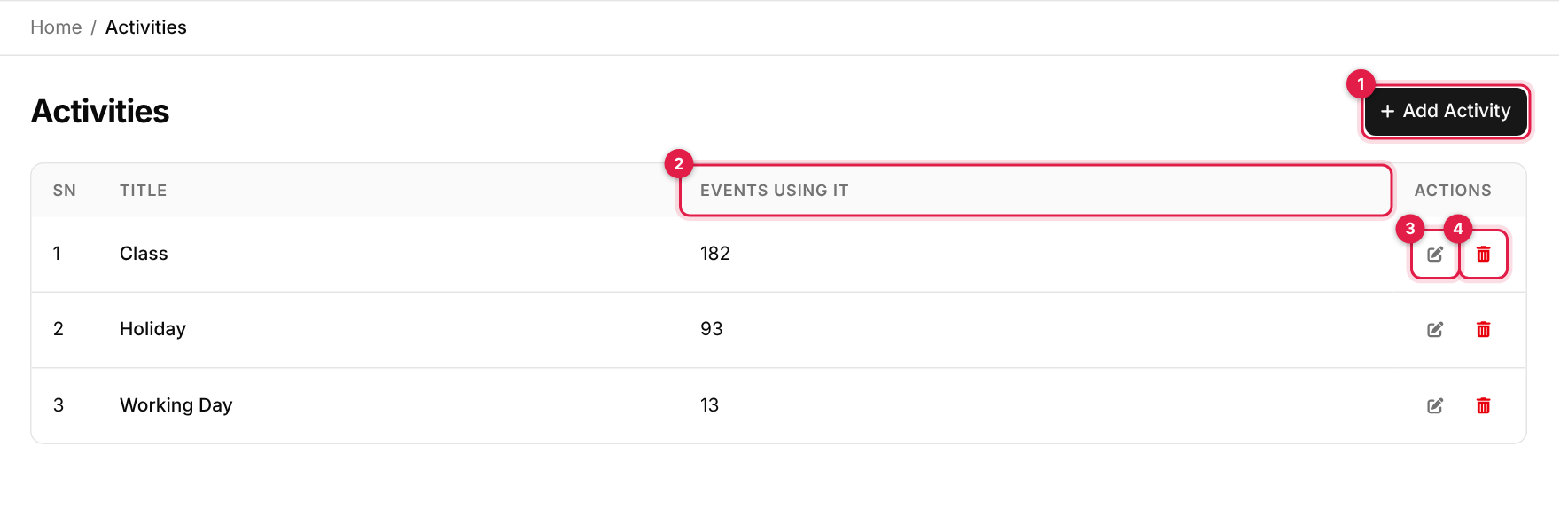
- 1Add Activity opens the add form.
- 2Events Using It: how many events carry this activity.
- 3Edit (pencil).
- 4Delete (red bin).
Add an activity
-
1
Open the form
Click Add Activity (callout 1). -
2
Enter the title
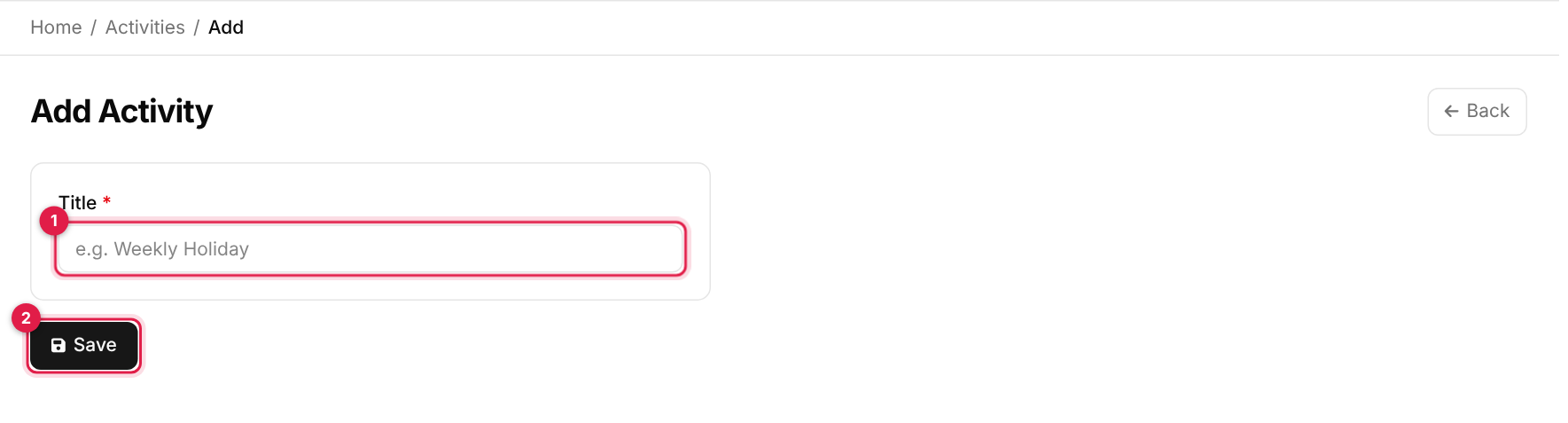
The Add Activity form # Field Required What to enter 1 Title Yes A unique label, for example Weekly Holiday.Callout 2 is the Save button.
-
3
Save
Click Save. You return to the list with Activity added successfully!.
Known issue: new activities cannot be marked as holidays
The built-in Holiday and Working Day activities are what mark a day as a holiday (red on the calendar, Holiday badge in lists) or as closed. The form has only a Title, so an activity you create yourself is just a label: it does not turn a day red or mark it closed. For holidays, use the built-in Holiday activity.
Edit and delete
-
1
Edit
Click the pencil (callout 3), change the Title and click Update. -
2
Delete
Click the red bin (callout 4) and confirm. An activity that any event still uses cannot be deleted.
Messages you may see
| Message | What it means |
|---|---|
| Activity added successfully! | The activity was created. |
| Activity updated successfully! | Your changes were saved. |
| Activity deleted successfully! | The activity was removed. |
| Cannot delete: this activity is still in use. | Events still carry it. Change those events first. |
| The title has already been taken. | An activity with that title already exists. |